
Affiliate disclosure: Some recommended tool links may earn Paepae Stack a commission if you buy through them. Recommendations are based on fit, tradeoffs, evidence, and source notes. Read the disclosure.
Kinsta product media preview
Hosting workspaceMap the hosting workspace

Start with the MyKinsta dashboard and resource center before changing DNS, cache, staging, or migration settings.

Workflow evidence

What the Kinsta managed WordPress workflow looks like

These owner-captured Kinsta screens show where a WordPress operator checks workspace navigation, setup choices, maintenance signals, operational tools, and add-ons. They support workflow-fit notes, not claims about speed, uptime, migration quality, support quality, or long-term reliability.

Workspace overview

Start with the hosting dashboard

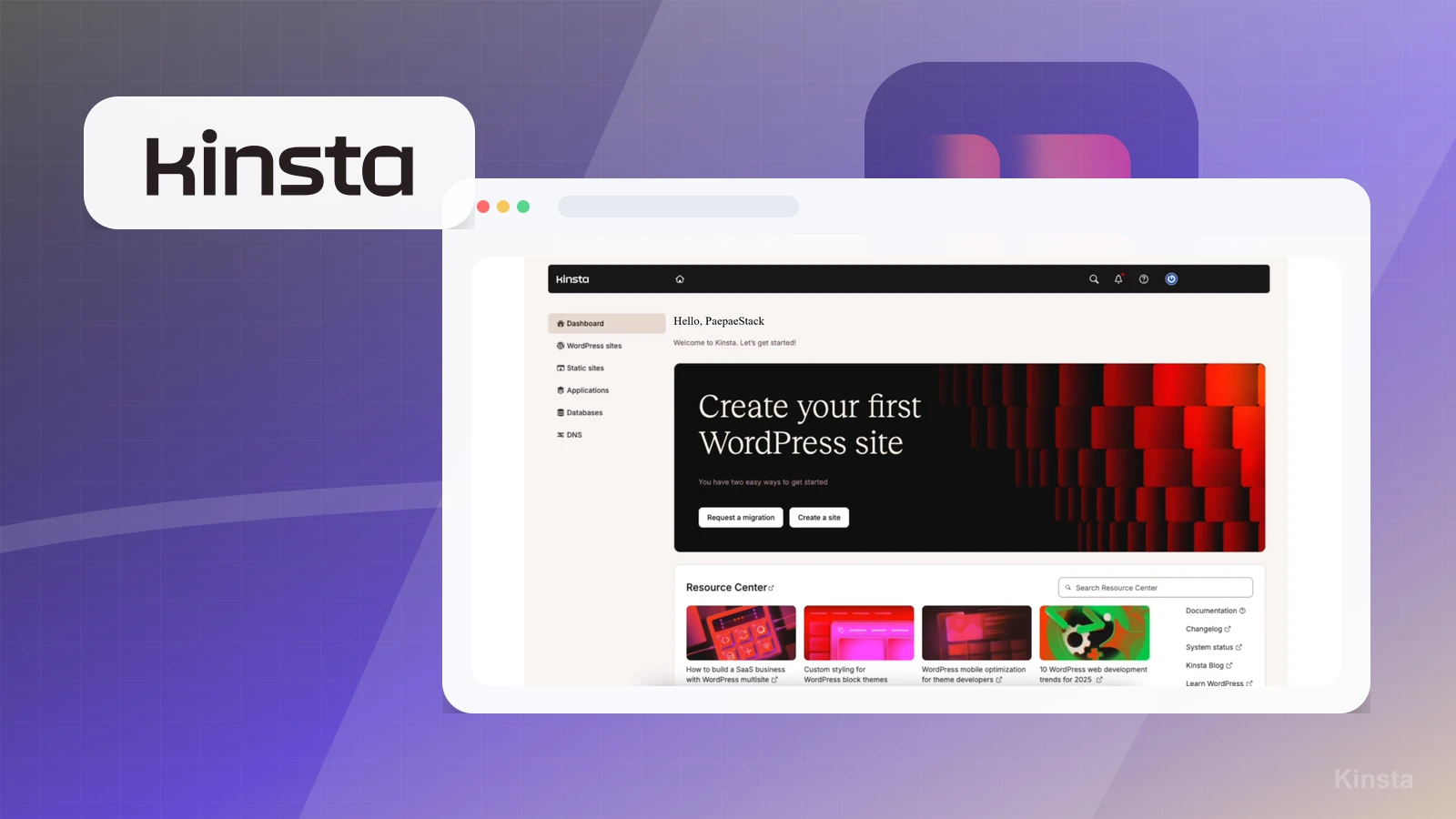
The dashboard shows the MyKinsta navigation, a first-site prompt, and resource center cards. Use it to orient the hosting workflow before touching domains, DNS, cache, staging, or migration settings.

Practical use

  • Confirm where sites, applications, databases, domains, and company settings live before moving a site.
  • Use the dashboard as a planning map, not as proof that the host will perform better for every WordPress build.

What this screen does not prove: A dashboard overview does not prove performance, uptime, support quality, migration quality, or account reliability.

Kinsta dashboard overviewDashboard overview with the main MyKinsta navigation and first-site prompt.

Updates and analytics

Review maintenance and usage signals

The updates and analytics view shows plugin, theme, and core update counts alongside resource and bandwidth panels. Treat these as operating cues for maintenance planning.

Practical use

  • Check whether update signals are easy to find before relying on the workspace for site maintenance.
  • Review resource and bandwidth panels as context for operations, then verify live performance with separate measurements.

What this screen does not prove: Usage and update panels do not prove page speed, uptime, Core Web Vitals, support response quality, or future traffic handling.

Kinsta WordPress updates and analyticsUpdate counts and analytics panels provide maintenance context, not performance proof.

Site creation

Choose the right starting path

The add-site screen offers install WordPress, empty environment, and clone options. That first choice affects whether the next step is a new build, a migration staging path, or a copy of an existing site.

Practical use

  • Decide whether the workflow is a fresh WordPress install, a blank environment, or a clone.
  • List the information needed before starting a real client or business-site setup.

What this screen does not prove: A setup option screen does not prove migration quality, plugin compatibility, DNS readiness, or launch success.

Kinsta add-site optionsAdd-site options show the first workflow choice before a WordPress launch or migration.

WordPress details

Prepare setup fields before launch

The WordPress details screen asks for site title, admin credentials, data center region, language, and multisite options. These are planning fields, not afterthoughts, for a serious site move.

Practical use

  • Prepare owner, admin, region, language, and multisite decisions before starting setup.
  • Keep credential handling outside public notes and screenshots, especially when real sites are involved.

What this screen does not prove: Visible setup fields do not prove a site will migrate cleanly, avoid plugin conflicts, or launch without DNS and cache checks.

Kinsta WordPress setup detailsWordPress setup fields show the launch details to prepare before creating a site.

Site tools

Check operational tools before relying on the host

The tools screen groups operational controls such as restart PHP, WordPress debugging, search and replace, monitoring, and password protection.

Practical use

  • Confirm that the controls needed for debugging, monitoring, and site maintenance are visible in the workspace.
  • Use the tool list to plan who owns risky operations such as search and replace or debugging changes.

What this screen does not prove: A visible tools list does not prove support quality, safe execution for every site, or that nontechnical users should run every operation themselves.

Kinsta site toolsSite tools show operational controls to review before depending on the hosting workspace.

Add-ons

Separate core hosting from paid add-ons

The add-ons screen lists optional services such as additional disk space, staging environments, PHP performance, and automatic updates. This helps separate the base hosting decision from plan extensions.

Practical use

  • Check whether the site needs add-ons before comparing monthly cost against other hosting paths.
  • Record which operational needs are included, optional, or better handled before migration.

What this screen does not prove: An add-ons screen does not prove a final monthly cost, support quality, performance gain, or long-term hosting fit.

Kinsta add-ons listAdd-ons help separate base hosting from optional operating costs.