Affiliate disclosure: Some recommended tool links may earn Paepae Stack a commission if you buy through them. Recommendations are based on fit, tradeoffs, evidence, and source notes. Read the disclosure.
FreshLearn product media preview

Workflow evidence

What the FreshLearn course workflow looks like

These five PaepaeStack owner-captured FreshLearn screens document course creation, lesson building, checkout-page editing, campaign, and automation surfaces visible at capture time. They are interface documentation only, not proof of completed setup, current plan behavior, course delivery, learner outcomes, or performance.

Create course

Start with the course creation path

The create-course form shows required Course Title and Description fields, a Course Author dropdown, and an Upload Thumbnail field.

Practical use

  • Prepare the title, description, author, and thumbnail inputs for the intended education product.
  • Clarify curriculum, audience, asset, pricing, ownership, and onboarding requirements before using the form.

What this screen does not prove: A creation modal does not prove that a course was created, saved, published, purchased, completed, or effective.

FreshLearn create-course setupOwner-captured FreshLearn create-course interface at capture time.

Course builder

Review the lesson-building workspace

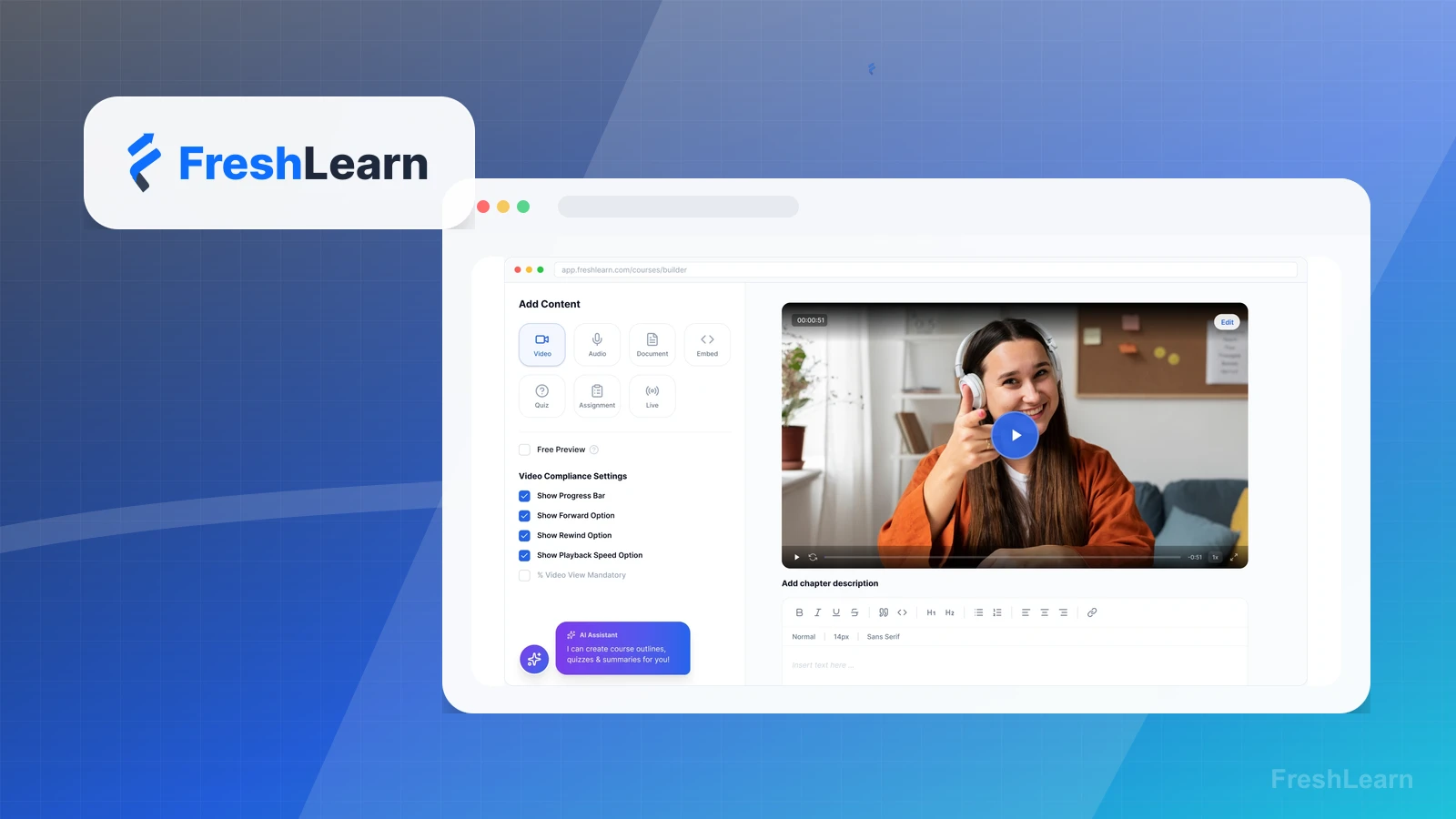
The course-builder screen shows content navigation, an add-content control, and a lesson editor with title, description, video, and content-type controls.

Practical use

  • Map lesson and module structure plus content ownership.
  • Review video, text, attachment, accessibility, review, and publication requirements separately.

What this screen does not prove: An editor does not prove content quality, accessibility, student progress, completion, publication, or support fit.

FreshLearn course-builder editorOwner-captured FreshLearn course-builder interface at capture time.

Checkout page

Inspect checkout inside the offer path

The checkout-page builder shows contact and payment sections, editable field settings, required toggles, styling controls, and save or cancel actions.

Practical use

  • Identify checkout fields and offer requirements.
  • Separately verify payment processor, tax, consent, refunds, accessibility, mobile, fulfillment, and post-purchase handoff.

What this screen does not prove: A builder and preview do not prove save or publication, payment reliability, tax handling, conversion, refunds, enrollment, fulfillment, or revenue.

FreshLearn checkout-page builderOwner-captured FreshLearn checkout-page interface at capture time.

Email campaigns

Inspect campaign controls around the course

The Email Campaigns screen shows All Campaigns and Compose tabs, a New Campaign button, sent, open, click, and subscriber summary cards, search, and populated recent-campaign rows with statuses.

Practical use

  • Locate campaign management and New Campaign entry points alongside the visible summary and recent-campaign signals.
  • Compare built-in email with a dedicated email platform when audience publishing is central.

What this screen does not prove: Campaign controls and empty-state copy do not prove creation, sending, delivery, opens, clicks, engagement, sales, or list growth.

FreshLearn campaigns workspaceOwner-captured FreshLearn campaign-management interface at capture time.

Email automation

Review automation entry points

The Re-engage Inactive Designers automation canvas shows trigger choices, audience filters and matching members, an email action, a wait step, save and run buttons, plus performance and delivery reports.

Practical use

  • Inspect visible trigger, audience, action, delay, save, run, and report surfaces before building an automation.
  • Assign message ownership, consent, suppression, testing, monitoring, and failure handling separately.

What this screen does not prove: An automation workspace does not prove save or activation, trigger execution, timing, delivery, student outcomes, support quality, or reduced manual work.

FreshLearn automations workspaceOwner-captured FreshLearn automation interface at capture time.

Plain verdict

Should you use FreshLearn?

Good fit as a budget course-platform alternative for creators comparing entry-level course tools.

Use this if

  • Budget course launches
  • Digital product sellers
  • Course platform comparison shoppers

Avoid for now if

  • Advanced education businesses
  • Agencies needing CRM
  • Newsletter-only creators

Evidence status

Documentation-based with workflow documentation

Last verified: 2026-05-02

Outbound status

Approved affiliate link

Affiliate links are disclosed before product clicks. Review the methodology.

Decision flow

Place FreshLearn in the stack decision

Use this path before treating FreshLearn as the answer. The product should fit the workflow role, comparison fork, and upgrade timing before an outbound click.

Short answer

FreshLearn fits when budget course launches need the stack role it is built for. It is not the right first path if your workflow matches advanced education businesses, so compare the cautions and alternatives before treating it as the first purchase.

Quick take

A course and digital product platform that can fit budget course creator comparisons.

Paepae Stack positions FreshLearn as budget course platform comparisons and freshlearn alternatives. The fit depends on the workflow, not only the feature list.

The recommendation includes workflow documentation and visible limitation notes, so the page separates what was seen in the workflow from claims that still require stronger proof.

Not ideal for

  • Advanced education businesses
  • Agencies needing CRM
  • Newsletter-only creators

Strengths

  • Useful budget angle
  • Good alternative in course comparisons
  • Simple creator category fit

Cautions

  • May be limiting for advanced education businesses
  • Feature fit must be checked against course needs

Pricing snapshot

Creator-friendly course and digital-product plans with free and paid options.

Start by checking course, student, digital product, payment, and community requirements.

Plan caveats

  • Budget fit should still be checked against the actual course delivery requirements.
  • Growing education businesses should compare limits before choosing only by entry cost.

Pricing sources

Implementation notes

  • Start by deciding the job FreshLearn must do in the stack, then compare it against the nearest alternatives.
  • Map the course structure, student access, and onboarding emails before choosing plan features.

When to upgrade

  • Upgrade toward FreshLearn when the workflow it supports is already visible in the business.
  • Delay the purchase if the tool would create more setup work than customer-facing value this month.

Questions this page answers

Who is FreshLearn a good fit for?
FreshLearn is a good fit for budget course launches, digital product sellers, course platform comparison shoppers when that workflow is already the next practical job in the business.
Who should skip FreshLearn?
Skip or delay FreshLearn if you identify with advanced education businesses or if the tool would add setup work before creating customer-facing value.

Next best action

Decide whether FreshLearn fits

The page is past the quarterly review window and should be refreshed before heavier promotion.

Visit FreshLearn: Open the approved outbound path after checking the fit notes and plan caveats.

Use Stack Builder: Use the guided path if the right category or stack is still unclear.

Guides

Read before choosing FreshLearn

Next steps

Compare or continue